
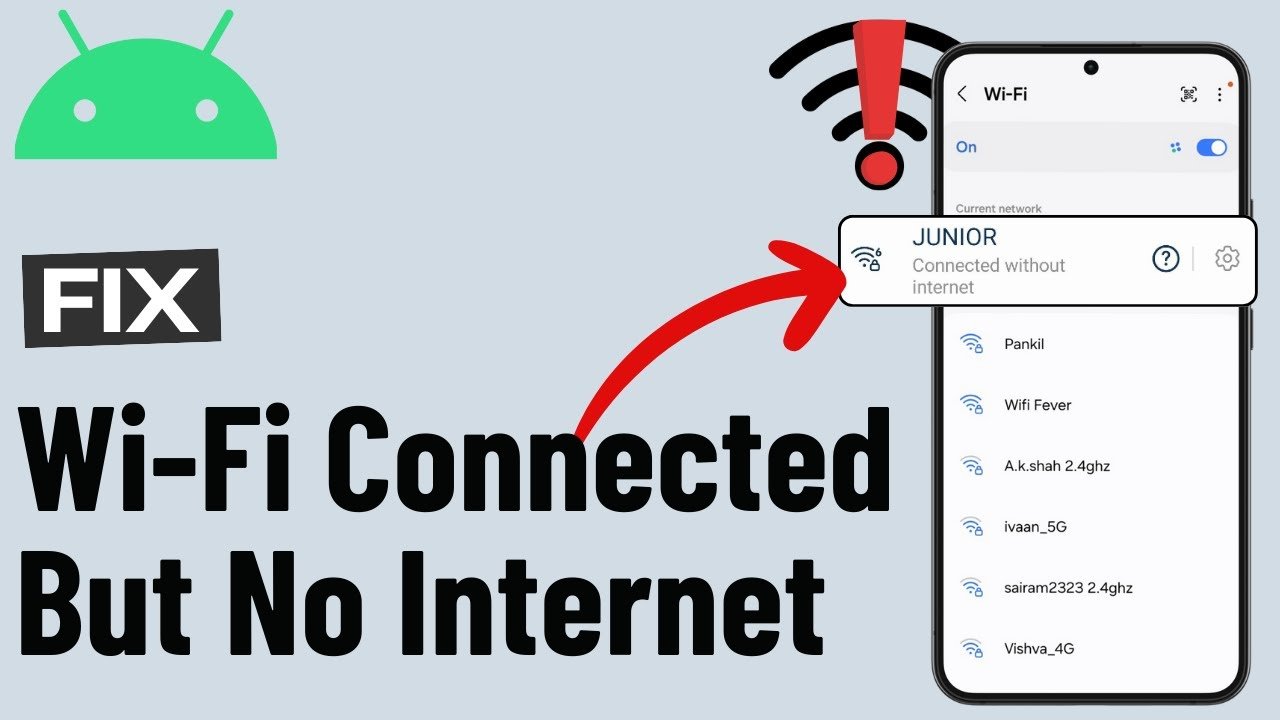
Your Android phone shows full Wi-Fi bars. The network says “Connected.” But nothing loads.
Websites refuse to open, YouTube keeps buffering, apps stay stuck on loading screens, and messages stop sending. It’s one of the most frustrating Android problems because everything looks connected even when the internet is not actually working.
This issue can happen because of:
- Router problems
- DNS errors
- Android network glitches
- VPN conflicts
- IP address issues
- Corrupted Wi-Fi settings
- Temporary ISP outages
The good news is that most cases can be fixed in a few minutes without technical experience.
This guide walks through practical solutions that work on Samsung, Xiaomi, OnePlus, Oppo, Vivo, Motorola, Pixel, and nearly all Android devices.
First: Confirm the Problem Is Really Your Phone
Before changing settings, make sure the issue is not affecting the entire network.
Quick Checks
Ask yourself:
- Do other devices have internet?
- Does Wi-Fi work on a laptop or another phone?
- Can mobile data access websites normally?
- Is the router blinking abnormally?
If every device has no internet, the issue is probably:
- Your router
- Your ISP
- A temporary outage
If only your Android phone has the problem, continue with the fixes below.
1. Turn Wi-Fi Off and Back On
This sounds simple, but it solves many temporary connection glitches.
Steps
- Swipe down Quick Settings
- Turn off Wi-Fi
- Wait 10 seconds
- Turn Wi-Fi back on
- Reconnect to the network
Sometimes Android gets stuck with an old session or failed IP assignment.
Example Screenshot
2. Restart Your Android Phone
Many network problems disappear after a restart because Android refreshes:
- Network services
- Temporary memory
- Background processes
- Wi-Fi drivers
How to Restart
- Hold the power button
- Tap Restart
- Wait for the phone to reboot
- Reconnect to Wi-Fi
A surprising number of users skip this step and waste time changing advanced settings unnecessarily.
Example Screenshot

3. Restart Your Wi-Fi Router
If the router has been running for days or weeks, it may stop assigning internet properly.
Proper Router Restart Method
- Turn off the router
- Unplug it from power
- Wait 30–60 seconds
- Plug it back in
- Wait until all lights stabilize
Do not just press the reset button randomly.
Why This Works
Restarting clears:
- Temporary router memory issues
- IP conflicts
- Connection overload
- ISP handshake problems
Example Screenshot

4. Forget the Wi-Fi Network and Reconnect
Corrupted saved Wi-Fi settings are extremely common on Android.
Removing and reconnecting to the network creates a fresh connection profile.
Steps
- Open Settings
- Tap Wi-Fi
- Select your network
- Tap Forget
- Reconnect using the password
Important Tip
Make sure you enter the password carefully. Many “connected but no internet” issues are actually authentication failures.
Example Screenshot
5. Check if Mobile Data Works
This helps identify whether the issue is:
- Your Wi-Fi network
- Or the phone itself
Test
- Turn off Wi-Fi
- Enable mobile data
- Open a website
If mobile data works:
The issue is likely your router or Wi-Fi settings.
If mobile data also fails:
You may have:
- DNS problems
- VPN issues
- Software bugs
- App conflicts
6. Disable VPN Apps
VPN apps often break internet connectivity without clearly showing an error.
Many users forget their VPN is active.
Common Symptoms
- Wi-Fi connected but pages never load
- Apps timeout repeatedly
- Internet works only sometimes
Fix
- Open your VPN app
- Disconnect it completely
- Test internet again
You can also temporarily uninstall the VPN app for testing.
Example Screenshot

7. Turn Off Private DNS Temporarily
Private DNS improves privacy, but sometimes DNS servers fail or become unreachable.
This is a very common hidden cause on Android 9 and newer devices.
How to Disable Private DNS
- Open Settings
- Go to Network & Internet
- Tap Private DNS
- Select:
- Off
- Or Automatic
Then reconnect to Wi-Fi.
Why This Helps
If the DNS server cannot respond, websites will never load even though Wi-Fi appears connected.
8. Reset Network Settings
If multiple network settings became corrupted, a network reset often fixes everything at once.
This resets:
- Wi-Fi
- Bluetooth
- Mobile network settings
It does NOT delete photos or apps.
Steps
- Open Settings
- Search for:
- Reset Options
- Tap:
- Reset Wi-Fi, Mobile & Bluetooth
- Confirm reset
Afterward:
- Reconnect to Wi-Fi
- Re-enter passwords
Example Screenshot
9. Check Date and Time Settings
Incorrect time settings can break:
- Secure website connections
- App authentication
- Internet certificates
This happens more often than people realize.
Fix
- Open Settings
- Go to Date & Time
- Enable:
- Automatic Date & Time
- Automatic Time Zone
Then restart the phone.
10. Disable Battery Saver Mode
Some Android phones aggressively restrict internet access during battery saving.
This especially affects:
- Xiaomi
- Huawei
- Oppo
- Vivo
- Realme devices
Test This
- Turn off Battery Saver
- Reconnect to Wi-Fi
- Test browsing again
Some battery optimization systems accidentally block background networking.
11. Check Router Limits
Some routers block new devices after reaching:
- Device limits
- MAC address limits
- Security restrictions
Signs
- Other devices work normally
- Only your phone cannot access internet
- Phone connects but remains offline
What to Do
Access router settings and check:
- Device whitelist
- MAC filtering
- Parental controls
- Connected device limits
If you are not familiar with router settings, restarting the router first is easier.
12. Update Android Software
Software bugs sometimes affect Wi-Fi stability.
Manufacturers release updates that fix:
- Connectivity bugs
- Driver problems
- Compatibility issues
Update Android
- Open Settings
- Tap Software Update
- Download updates if available
Budget phones especially benefit from stability patches.
Example Screenshot

13. Try Safe Mode
Some apps interfere with internet access.
This includes:
- VPN apps
- Antivirus apps
- Firewall apps
- Ad blockers
Safe Mode disables third-party apps temporarily.
How to Enter Safe Mode
On most Android phones:
- Hold Power button
- Press and hold Power Off
- Tap Safe Mode
If Wi-Fi works normally in Safe Mode, one of your apps is likely causing the problem.
14. Check for ISP Outages
Sometimes the issue is simply your internet provider.
Signs of ISP Problems
- Router connected but internet light is red
- Internet suddenly stopped for everyone
- Mobile data works fine
- Router restart changes nothing
Check:
- ISP social media pages
- Downdetector websites
- Local outage announcements
Common Mistakes People Make
Restarting the Phone but Not the Router
Many connection issues actually start at the router.
Restart both devices.
Installing “Wi-Fi Booster” Apps
Most Wi-Fi booster apps:
- Show ads
- Drain battery
- Provide little benefit
Android already manages Wi-Fi automatically.
Changing Random Developer Settings
Many YouTube tutorials recommend dangerous settings changes without explanation.
Avoid changing:
- Wi-Fi frequency settings
- Developer networking options
- Random DNS configurations
Unless you fully understand them.
Pro Tips for Better Android Wi-Fi Stability
Stay Closer to the Router
Walls, mirrors, and furniture weaken Wi-Fi signals more than many people realize.
Use 5 GHz When Possible
5 GHz offers:
- Faster speeds
- Less interference
But:
- Shorter range
2.4 GHz works better farther away.
Keep Router Firmware Updated
Old router firmware can cause:
- Random disconnects
- Security problems
- Android compatibility issues
Avoid Cheap VPN Apps
Free VPNs often create more connection issues than they solve.
Quick Troubleshooting Checklist
| Fix | Difficulty | Usually Effective |
|---|---|---|
| Restart phone | Easy | Very common fix |
| Restart router | Easy | Very common fix |
| Forget Wi-Fi network | Easy | Often works |
| Disable VPN | Easy | Common hidden issue |
| Reset network settings | Medium | Very effective |
| Disable Private DNS | Medium | Helpful on Android 9+ |
| Safe Mode test | Medium | Finds app conflicts |
FAQ
Why does my Android say connected to Wi-Fi but no internet?
Usually because of router problems, DNS issues, VPN conflicts, or corrupted network settings.
Does resetting network settings delete everything?
No. It only resets:
- Wi-Fi settings
- Bluetooth connections
- Mobile network configurations
Your apps and files remain safe.
Why does Wi-Fi work on other devices but not my phone?
Your phone may have:
- Corrupted Wi-Fi settings
- VPN conflicts
- DNS problems
- Battery optimization restrictions
Can a VPN stop internet access on Android?
Yes. VPN apps are one of the most common causes of internet connection failures.
Why does restarting the router help?
Routers develop temporary glitches, memory overload, or IP assignment problems over time.
Should I factory reset my phone?
Only as a last resort. Most Wi-Fi issues can be solved without deleting your phone.
Conclusion
The “Wi-Fi connected but no internet” error on Android looks complicated, but in most cases the fix is surprisingly simple.
Restarting your router, reconnecting to Wi-Fi, disabling VPNs, resetting network settings, or changing DNS options usually solves the issue within minutes.
The biggest mistake people make is immediately assuming their phone is broken. In reality, temporary network glitches, router problems, or app conflicts are far more common.
Start with the simple fixes first. Most users solve the problem before even reaching the advanced steps.